
Suppose you just got an Amazon Echo device and have been asking Alexa questions, along with music requests of course. In that case, you’ve barely scratched the surface when it comes to the full potential of what it can do. Your Echo Dot and Alexa 5th Generation can not only connect to Wi-Fi and Bluetooth but also control smart devices. This guide will break down how to connect smart devices with Alexa and help you step into a world with no bounds!
A Beginner’s Guide on How to Connect Smart Devices with Alexa
Alexa works with many smart devices including lights, locks, and window blinds. You can automate these devices with daily schedules or control them anytime using voice commands for each item or the entire room.

With a shared connection in place, you can proceed with voice control setup, instructing Alexa to connect Amazon Echo to nearly any device and start your smart home journey. What is initially a speaker turns into a user-friendly control center.
Setting up Alexa with network connectivity and devices can still be tricky for anyone new to smart home integration. Read on to learn how to link Alexa to your Wi-Fi and Bluetooth. Plus, you will know how to add device to Alexa app for a smooth smart home setup.
Connect Echo and Alexa to the Wi-Fi
Before you connect smart devices with Alexa and enjoy the full extent of its versatility, an internet connection is vital. The display and speaker should guide you through the Wi-Fi setup when you power up for the first time. If you have lost the directions or need to reconnect your device, there’s an easy fix for internet connection requirements.
Open the Alexa app and select Devices at the bottom right. Follow this by Echo & Alexa in the top right corner, and choose the device you want to connect.
The Status option will let you check the current Wi-Fi connectivity, and press the blue Change button next to the network name. Press and hold the Action button until the light turns orange and you go on to the setup mode, from where you choose Alexa device and Wi-Fi network.
Linking To Your Wi-Fi Without the App?
The best way to link Alexa to your Wi-Fi without using the Echo app is by logging on alexa.amazon.com. On the Settings menu, the choice ‘Set Up a New Tool’ will let you pick the Wi-Fi. You will need to set your tool in pair mode by plugging it into a power slot. Click Next on the page only when the Echo’s blue light turns orange.
Back on your screen, go to Wi-Fi settings and pick the net that shows the form of Amazon-XXX. The note ‘Your computer is connected to your Alexa device’ will show up on the Alexa page. After this, all you need to do is pick your Wi-Fi and type the password to link to Alexa. If you want to make sure that the smart gear is on and works, just ask Alexa!
Connect Acho and Alexa to Bluetooth
If you want to use your smart speaker as a Bluetooth speaker before you connect smart devices with Alexa, linking your phone is quite simple. It takes a while the first time, but it will be seamless to reconnect later once the setup is done.
Make sure that your phone’s Bluetooth is on before you open the Alexa app. The Echo will go on to device discovery, and you can tap your phone once it pops up in the app.
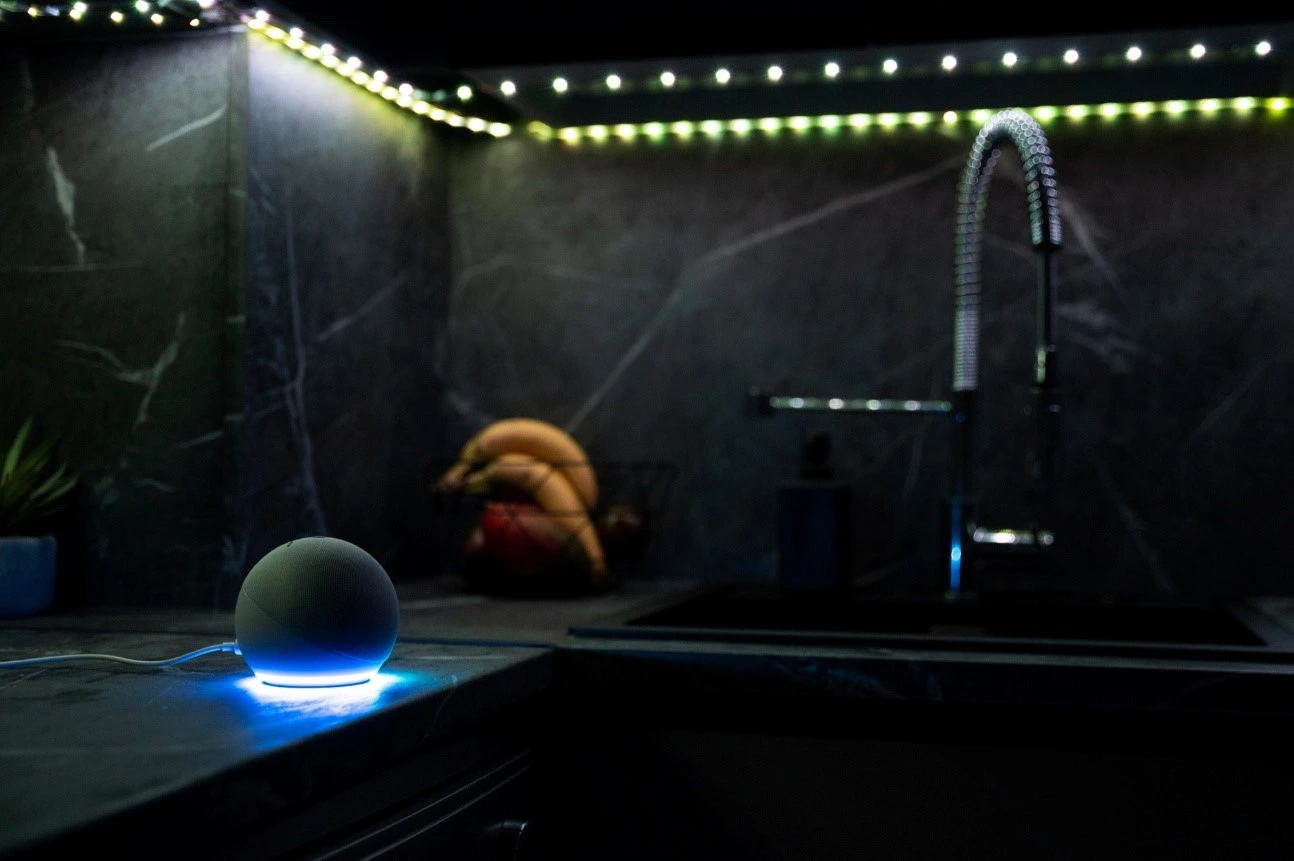
Enjoy songs or play podcasts right from your phone when you turn on the Bluetooth. You can make it feel as ‘techy’ as you want, just say ‘Alexa, connect to my phone’, and your Echo will link on its own with no need for the app.
How to Connect Smart Devices with Alexa
Did you install and set up a new device like smart lighting over traditional lightning? You may have been using it via its own app, but know that linking it to Alexa enhances ease. You can enlist the help of a reliable Home Automation Service in Pakistan if you have many devices at hand that need to be in perfect sync with the smart home system.
Finding the right Alexa skill to tackle each device and enable it using the account details for Alexa itself. Provide a voice command or open the Alexa app to start the manual process.
Start by choosing Devices in the app, then tap the + icon and add smart home device to Alexa. You will see a list of popular brands and device types, but you can simply scroll all the way to the bottom and go for Other to simplify this.
Your Echo device will scan for nearby compatible smart devices and try to auto connect them to your account. You can add them to your smart home app with ease as long as the Wi-Fi network is stable.
You need to enable the correct skill to connect smart devices with Alexa at the Alexa Skill Store. Tap the Enable to Use button, then sign in with the same account you used when first went through the Alexa app configuration.
Using Connected Smart Devices with Alexa
Once linked, Alexa will pull in the names you gave your devices during setup. That way, you can use those same names with voice commands. Saying ‘Alexa, turn on the table lamp’ for instance will work perfectly if that’s the device name.
That said, how to connect smart devices with Alexa if you have two devices with the same name? To avoid this, it’s a good idea to rename one or both when you finish Alexa device pairing. This way, these are easier for your smart tech to tell apart. You can make the change right in the app by heading to Devices. Tap the gear icon on the device you choose and edit the name to what makes sense for your space.
Maximize the Potential of Alexa for Device Control
To connect smart devices with Alexa is to adopt more than just voice commands to turn lights on and off. A fully integrated smart system with Echo and Alexa transforms your home into a versatile space that is easier to manage. With just a few steps, your tech works seamlessly together and makes everyday tasks accessible for anyone who needs to elevate comfort and efficiency.
If you’re looking to upgrade your home with the latest smart devices or need help setting up, turn to Neolux. From custom picks to smart hub setup, we’ll make sure your smart home works the way you want. Visit us to explore the tech we offer and book your smart home setup today.

